

Supported systems
- Windows
- macOS (Intel and Apple Silicon)
- Linux
Prerequisites
Before you start using openteams, make sure you already have access to at least one model provider. You can follow the model provider configuration guide to add your API keys. If you already use other coding agents, or plan to use them in openteams, make sure they are installed and authenticated correctly first. openteams currently supports 10 coding agents. Here are the installation commands for some commonly used ones:| Agent | Installation command |
|---|---|
| Claude Code | npm install -g @anthropic-ai/claude-code |
| Gemini CLI | npm install -g @google/gemini-cli |
| Codex | npm install -g @openai/codex |
| OpenCode | npm install -g opencode-ai@latest |
Installation
- Windows
- macOS
- Linux
Option 1: Run with npxOption 2: Desktop installer (recommended)Download the latest installer ( After installation, launch openteams directly.
.msi):After installation, launch openteams directly.
Quick demo
Here is a short demo showing how to create a session, import a team, and start collaborating in openteams:Quick start
Launch openteams
Choose how you want to start openteams:Option 1: Use the desktop app
Open the installed openteams app from your system launcher.Option 2: Run with npx
openteams uses
openteams-cli as the default base agent. To access models successfully, configure your API credentials in model provider configuration.
You can also use other agents. See supported coding agents for details, and make sure each one is installed and authenticated before use.Create a session
After launch, click 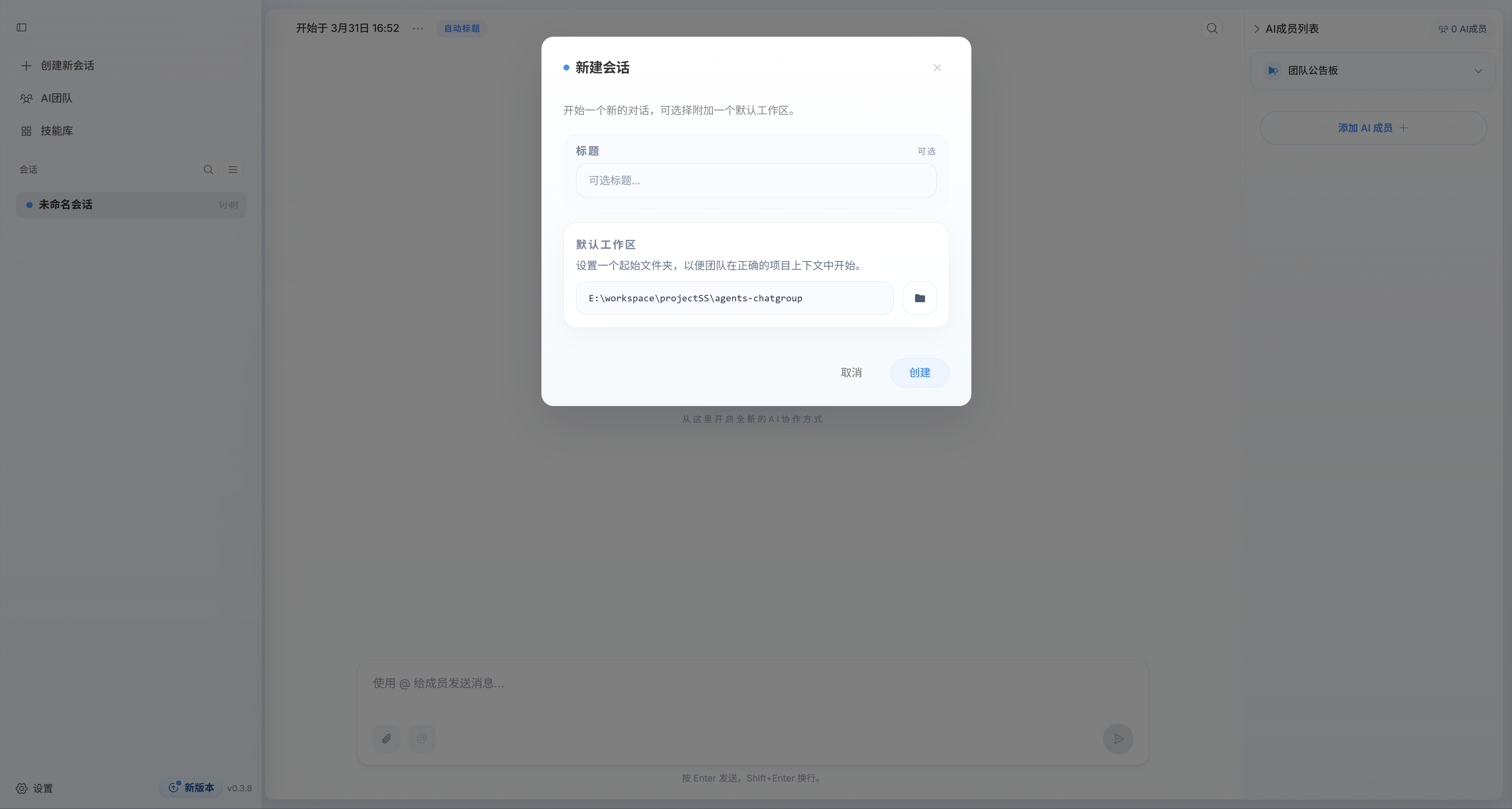
Create Session, enter a session name, and optionally set a default workspace path.
This is not required. You can skip it and keep the default session title and default workspace.The default workspace is the shared default working directory for all AI members in that session. You can still set a separate workspace path for each member in team configuration, and those member-level settings take priority over the session default.
Create a team
Click 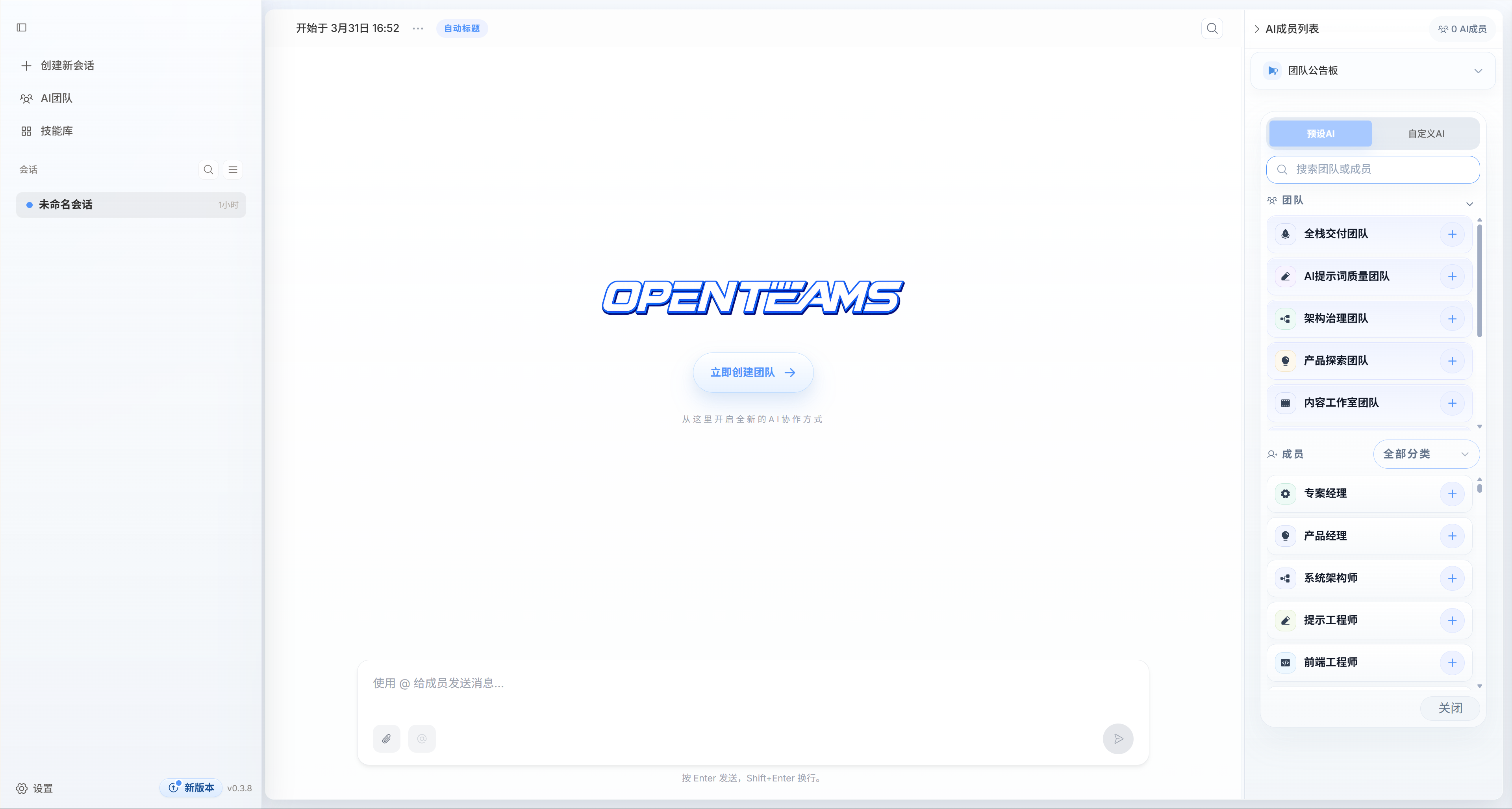 For example, the Full-stack Delivery Team includes roles such as project manager, frontend developer, backend developer, test engineer, and UI designer, so it can collaborate on a complete project delivery.
You will need to configure each member’s model, workspace path, and skills. You can also keep the default setup and use the team as-is.
For example, the Full-stack Delivery Team includes roles such as project manager, frontend developer, backend developer, test engineer, and UI designer, so it can collaborate on a complete project delivery.
You will need to configure each member’s model, workspace path, and skills. You can also keep the default setup and use the team as-is.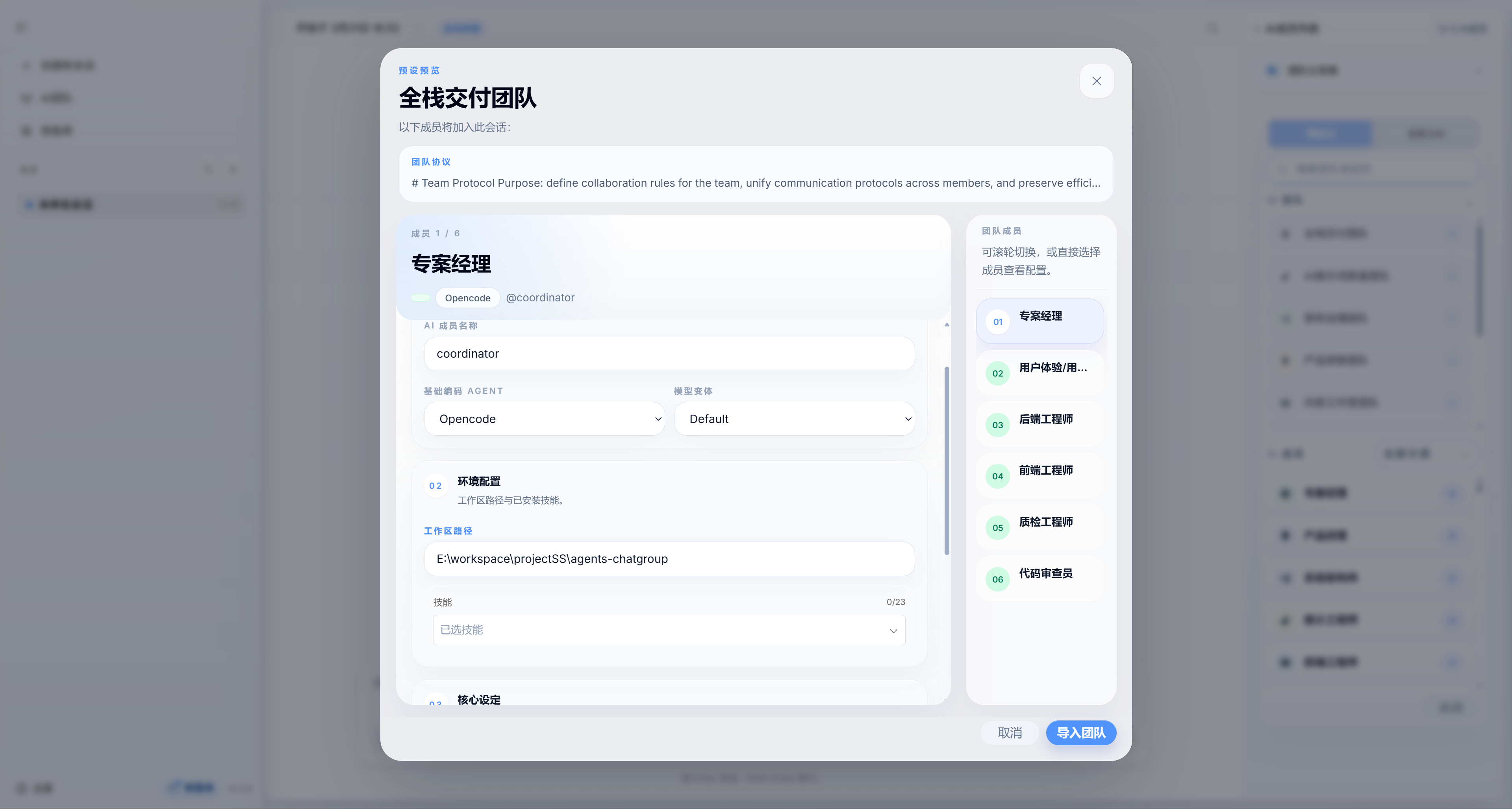
Create Team Now, choose a preset team that fits your task, or add preset AI members and custom AI members to build your own team.For example, the Full-stack Delivery Team includes roles such as project manager, frontend developer, backend developer, test engineer, and UI designer, so it can collaborate on a complete project delivery.
You will need to configure each member’s model, workspace path, and skills. You can also keep the default setup and use the team as-is.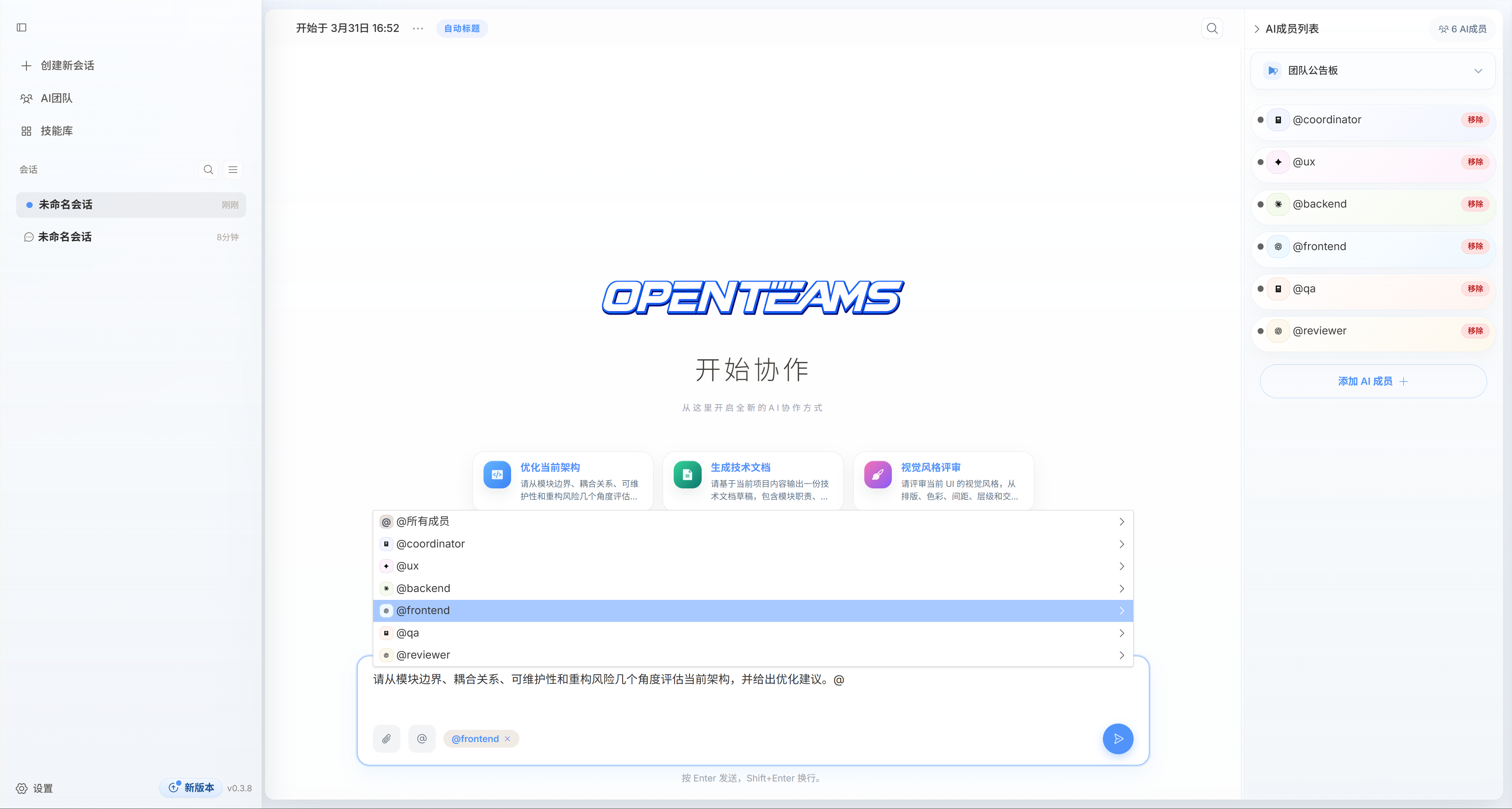
Next steps
Manage Teams
Organise your AI teams and get more value from collaboration
Use Skills
Give your AI members more powerful capabilities